Guide6 min read
Resolving Git Merge Conflicts: A Practical Guide
Why Conflicts Happen
A merge conflict occurs when two branches modify the same line of a file differently. Git cannot decide which change to keep, so it asks you to choose.
Understanding Conflict Markers
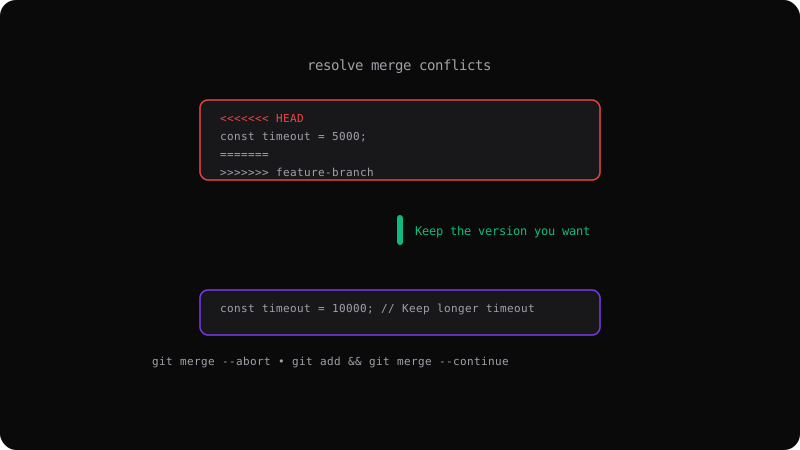
When a conflict happens, Git edits the file with markers:
<<<<<<< HEAD
const timeout = 3000;
=======
const timeout = 5000;
>>>>>>> feature-branch
<<<<<<< HEAD— your current branch's version=======— divides the two versions>>>>>>> feature-branch— the incoming branch's version
Resolving Step by Step
# Start the merge
git merge feature-branch
# Git reports: CONFLICT in src/config.ts

# Open the conflicted file, find the markers, edit to keep the right code
# Remove the markers and the unwanted version

# Stage the resolved file
git add src/config.ts

# Complete the merge
git commit
# Git opens the default merge commit message — save and quit
Abort a Merge
If the conflict is too complex or you changed your mind:
git merge --abort
# Returns to the state before the merge started
Merge Tools
Visual tools make conflict resolution much easier:
# Use VS Code as merge tool
git config --global merge.tool vscode
git mergetool
VS Code shows a three-pane view: yours, theirs, and the merged result. Other popular tools include Beyond Compare, Kaleidoscope, and Meld.
Strategies to Minimize Conflicts
- Pull frequently — staying up to date with main reduces conflict size
- Communicate — tell your team when you are working on shared files
- Small commits — smaller changes are easier to merge
- Rebase before merge —
git rebase mainon your feature branch catches conflicts early
Conflicts are normal — they are Git's way of protecting your work from accidental overwrites.
Get the Offline Git Field Guide
The 97-page PDF + ePub course — $9. Read this command, offline.