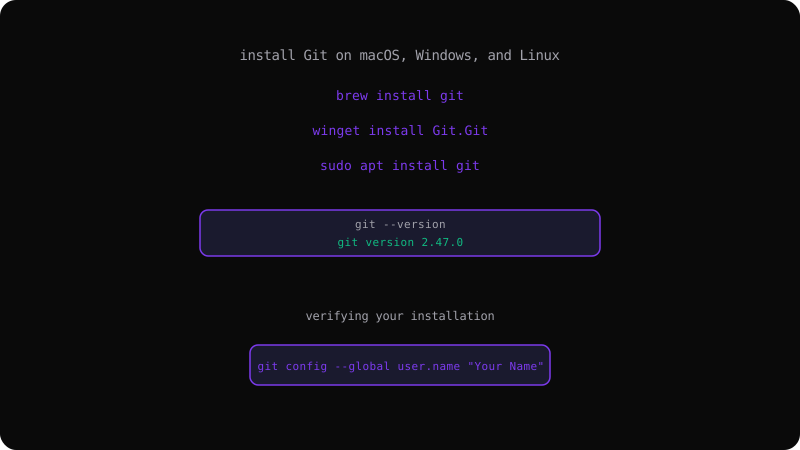
How to Install Git on Windows, macOS, and Linux
Before you can run a single Git command, you need Git installed. This guide walks through installing Git on macOS, Windows, and Linux using each platform's recommended tools, then verifying the install and configuring your identity so your commits are properly attributed.
Check Whether Git Is Already Installed
Many machines ship with Git or a bundled version (for example, macOS with Xcode Command Line Tools). Before installing, check:
git --version
# git version 2.47.0
If this prints a version number, Git is already installed — jump to the configuration section at the end. If it prints command not found, continue below.
Install Git on macOS
You have several good options on macOS. The two most common are Homebrew and the official installer.
Option 1: Homebrew (Recommended)
If you use Homebrew, installation is a single command:
brew install git
Homebrew installs the latest stable release and keeps it up to date when you run brew upgrade. Verify with:
git --version
Option 2: Official Installer
Download the macOS installer from git-scm.com and run it. The installer includes Git for the system and optionally installs Xcode Command Line Tools. After installation, Apple's gatekeeper may ask you to confirm opening the package — click Open.
Option 3: Xcode Command Line Tools
Run the following, which installs Git along with other developer tools:
xcode-select --install
Follow the on-screen prompts. This version of Git can lag behind the latest release, so many developers prefer Homebrew.
Install Git on Windows
Option 1: Winget (Recommended)
Windows Package Manager can install Git with a single command:
winget install --id Git.Git -e --source winget
Afterwards, open a fresh terminal (PowerShell or Command Prompt) and verify:
git --version
Option 2: Installer from git-scm.com
Download the standalone installer and run it. During setup you will be asked about several options. The defaults are sensible for most users, but two choices are worth understanding:
- Adjusting your PATH environment: choose "Git from the command line and also from 3rd-party software" (the recommended setting) so Git works in both PowerShell and CMD.
- Line ending conversions: Git for Windows defaults to checking out Windows line endings (
CRLF) and committing Unix line endings (LF). Keep the default unless your team has specifically configured otherwise, to avoid mass rewrites of files.
This installer also provides Git Bash, a Unix-like shell bundled with Git, which is very helpful on Windows for running Git commands with familiar syntax.
Install Git on Linux
Git is available in virtually every Linux distribution's package manager.
Debian / Ubuntu
sudo apt update
sudo apt install git
Fedora
sudo dnf install git
CentOS / RHEL
sudo yum install git
Arch Linux
sudo pacman -S git
After any of these, verify the install:
git --version
Verify Your Installation
Once Git is installed, run these checks to confirm everything is working:
git --version          # the executable is on your PATH
git help --all         # lists available commands
which git              # shows where Git is installed
If git --version works but which git fails on some systems, the issue is usually related to your shell's PATH configuration. On Windows, fully close and reopen your terminal after installing so the new PATH is picked up.
Configure Your Identity
Git records your name and email with every commit. You must set these before your first commit, or Git will warn you:
git config --global user.name "Your Name"
git config --global user.email "you@example.com"
Use the email you use on GitHub, GitLab, or wherever you push code — that is how commits are linked to your account. Verify the configuration:
git config --global --list
Also set a sensible default branch name for new repositories:
git config --global init.defaultBranch main
Common Installation Problems
"git: command not found" after installing on Windows. Close and reopen your terminal so the PATH change takes effect, then try again.
Homebrew says Git is already installed but it's old. Run brew upgrade git to get the latest version.
"Please tell me who you are" when committing. You skipped the configuration step. Run the two git config --global commands above.
Permission denied when installing on Linux. Package managers need sudo. Prefix the install commands with sudo and enter your password when prompted.
With Git installed and configured, you are ready to create your first repository. Run git init in a project folder to get started, or continue with the <a href="/learn">command reference</a> to learn every command.