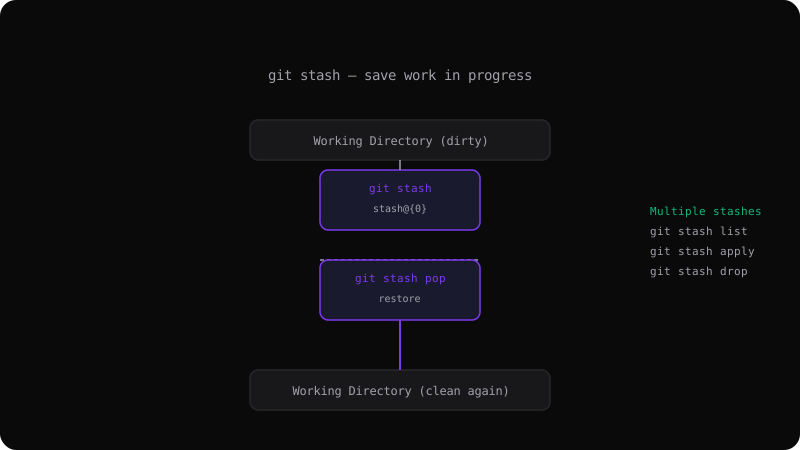
Git Stash: Save and Restore Work in Progress
The Context Switch Problem
You are mid-way through a feature. An urgent bug needs fixing on main. You cannot commit half-finished code, and you do not want to lose your changes. git stash is the solution — it temporarily shelves your working directory so you can switch branches cleanly.
Basic Stash Commands
# Save current changes (tracked files only)
git stash

# Save with a descriptive message
git stash push -m "WIP: login form validation"

# Restore the most recent stash
git stash pop

# Restore without removing from stash list
git stash apply
Managing Multiple Stashes
You can have several stashes saved at once. They are stored on a stack — the most recent stash is always stash@{0}.
# List all stashes
git stash list
# stash@{0}: WIP: login form validation
# stash@{1}: WIP: API integration

# Apply a specific stash
git stash apply stash@{1}

# Drop a stash without applying
git stash drop stash@{0}

# Clear all stashes
git stash clearStashing Untracked Files
By default, git stash only saves tracked files (files that have been staged or committed before). To include untracked files:
# Include untracked files
git stash -u
# or
git stash --include-untracked

# Include everything, even ignored files
git stash -a
Partial Stashing
Only stash specific files or hunks:
# Stash only staged changes
git stash --staged

# Interactive hunk selection
git stash -p
# Git shows each change and asks if you want to stash it
Common Pitfalls
Popping on the wrong branch: If you pop a stash on a different branch, the changes are applied there. Make sure you are on the right branch before restoring.
Stash conflicts: When you apply a stash and the files have changed, you get merge conflicts. Resolve them like any other conflict, then git stash drop when done.
Forgotten stashes: Old stashes accumulate. Review your stash list regularly and clean up stashes you no longer need.
git stash is essential for fluid context switching. It keeps your working directory clean without forcing incomplete commits into your project history.
Get the Offline Git Field Guide
The 97-page PDF + ePub course — $9. Read this command, offline.