Guide5 min read
Git SSH Setup: Secure Authentication for Remote Repositories
Why SSH Over HTTPS
HTTPS requires you to enter your username and password (or personal access token) for every push. SSH uses cryptographic key pairs — once configured, you never type credentials again.
Generating an SSH Key
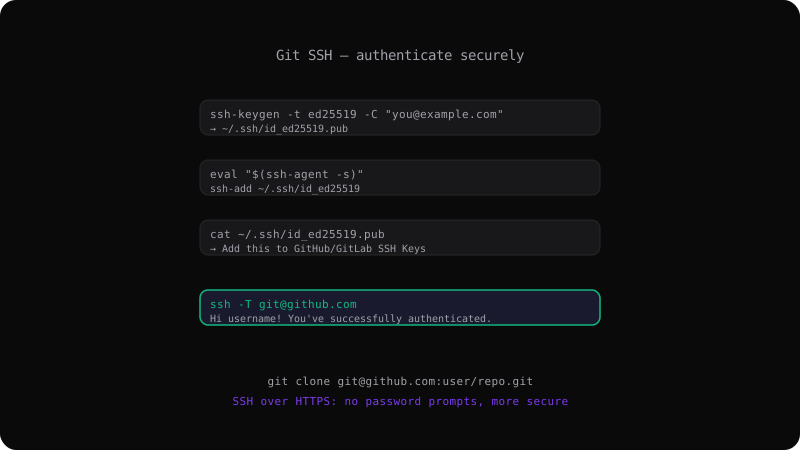
ssh-keygen -t ed25519 -C "your.email@example.com"
# Follow the prompts (press Enter for defaults)
This creates two files:
~/.ssh/id_ed25519— your private key (never share this)~/.ssh/id_ed25519.pub— your public key (goes on the server)
Adding Your Key to the SSH Agent
eval "$(ssh-agent -s)"
ssh-add ~/.ssh/id_ed25519
Adding the Key to GitHub
cat ~/.ssh/id_ed25519.pub
# Copy the entire output
Go to GitHub → Settings → SSH and GPG keys → New SSH key. Paste and save.
Testing the Connection
ssh -T git@github.com
# Hi username! You've successfully authenticated.
Cloning with SSH
git clone git@github.com:username/repository.git
Use the SSH URL format (git@github.com:user/repo.git) instead of the HTTPS URL (https://github.com/user/repo.git).
Multiple SSH Keys
If you use multiple Git services (GitHub + GitLab + Bitbucket), use a config file:
# ~/.ssh/config
Host github.com
  HostName github.com
  IdentityFile ~/.ssh/id_ed25519_github

Host gitlab.com
  HostName gitlab.com
  IdentityFile ~/.ssh/id_ed25519_gitlab
Troubleshooting
# Verbose output shows every step
ssh -vT git@github.com

# Permission denied? Check your key is added to the agent
ssh-add -l

# Wrong key? Specify which one to use
ssh -i ~/.ssh/id_ed25519 -T git@github.com
SSH authentication is a one-time setup that saves thousands of password prompts over the life of your project.
Get the Offline Git Field Guide
The 97-page PDF + ePub course — $9. Read this command, offline.